Showing posts with label tools. Show all posts

Monday, February 24, 2014

GlassFish Extension for JDeveloper 12c Go live!

Hi all, I just wanted to share with you that the Glassfish Extension for JDeveloper 12c is available now. As noted in my previous post, this extension is based on the source code provided by Shay Shmeltzer. You can learn more about his GlassFish Extension for JDeveloper 11g in the following post:


The source code for the extension can be found at the ADF-EMG GitHub repository, so you can help to enhance the extension and further develop it.
While the extension is deployed and hosted on Oracle's servers, so you can download it via JDeveloper's menu: help->check for updates, you can follow these steps in order to do a manual installation:
  1. Download the extension here: Glassfish Extension for JDeveloper

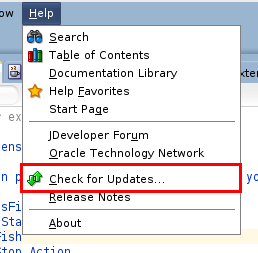
  2. Open JDeveloper and go to: Help->check for updates

  3. Select Install From Local File and browse for the file that you downloaded in step 1 (a .zip file)


  4. JDeveloper will show you a summary before installation, press the Finish button and will restart itself to complete the installation


  5. Once the installation is complete, yo can find a new section in the toolbar and inside the Run menu with the Glassfish Extension buttons


  6. Before you can use the extension, you should configure the paths to your Glassfish server installation, you do that in: Tools->Preferences->Glassfish Preferences


That's it, now you can control your GlassFish server from inside JDeveloper 12c.

see ya!

Wednesday, January 16, 2013

Oracle Team Productivity Center

Hello all. Have you heard about the Oracle Team Productivity Center (OTPC)? If not, let me tell you that it is a tool that lets you connect several application lifecycle management tools such as Bugzilla, Subversion, Jira, etc. To your JDeveloper IDE. In that way, you only need JDeveloper to track bugs, commit your work, update task status, there is even a chat window that let you connect with the rest of your team! The idea here, is to improve developers productivity since they don't have to leave the development environment for such tasks.

It is very useful, at work we are using it in one of our projects and it works pretty well, specially the Subversion integration has been really nice since one change to an ADF EntityObject or ViewObject may result in several changes to other files. We haven't connect it to a continuous integration system (such as Hudson), but we're looking forward to do it in the near future.

The installation is pretty straight forward, you need to download the Team Productivity Center Sever installer and execute it on your server. What you need:

There's plenty documentation about how to install and start with this tool, so I'm not explaining that in this post. Instead, I'm going to tell you some configurations that were not so obvious:
  • During installation, you define an Administration Account, you should write it down since that's the information you need for accessing the OTPC server from JDeveloper and for creating new users.
  • If using Glassfish server, make sure that in the step Application Server Location you select a path like this one: <GLASSFISH_INSTALL_DIR>/glassfish/domains/<YOUR_DOMAIN>/autodeploy
  • After installation, you can check whether OTPC is running if you see the following page when trying to reach: <YOUR SERVER_AND_PORT>/otpc, where <YOUR_SERVER_AND_PORT> should be something like: localhost:8080

  • Once you install the server, you should install the extension on JDeveloper. For that, go to Help>Check for updates. Doing this enables a new menu: View>Team with many options for team development.
  • OTPC comes with a Chat tool which can be configured to connect to a chat server. You can connect to any chat server that supports XMPP/Jabber talk client such as Google Talk. Following are the configurations you need in order to connect to Google Talk from JDeveloper, the same configurations work if you have Google Apps account and want to connect to the Google Talk of your company:


see ya!


References:

JDeveloper 11gR2. Oracle [online].
Available on Internet: http://www.oracle.com/technetwork/developer-tools/jdev/overview/index.html
[accessed on January 14 2012].

Oracle Tam Productivity Center. Oracle [online].
Available on Internet: http://www.oracle.com/technetwork/developer-tools/tpc/overview/index.html
[accessed on January 13 2012].

Oracle Team Productivity Center (OTPC) – Team Server part. ANDREAS KOOP [online].
Available on Internet: http://multikoop.blogspot.com/2009/12/oracle-team-productivity-center-otpc.html
[accessed on January 14 2012].

Installation Guide for Oracle Team Productivity Center Server. Oracle [online].
Available on Internet: http://docs.oracle.com/cd/E35521_01/install.111230/e17075/tpcig.htm
[accessed on January 14 2012].

Susan Duncan Blog. [online].
Available on Internet: http://susanduncan.blogspot.com/
[accessed on January 06 2012].

Wednesday, January 9, 2013

JDeveloper 11gR2 and Subversion

During the last month I've been architecting an ADF Essentials project for a local company which has 4 developers to work on the project. We are planning to use several collaboration and development lifecycle management tools such as: Subversion, Bugzilla, Oracle Team Productivity Center, Wiki, etc.

I wanted to share with you something that was happening to me when using Subversion and JDeveloper, something simple, but took me several hours to figure it out.

First of all, if you don't know what subversion is, I found this very practical guide that may be helpful:


The version of JDeveloper we are using is JDeveloper 11gR2 (11.1.2.3.0) which is certified to work with Subversion 1.6.x according to the official documentation. At first, we were having issues because we installed a different version of subversion, but once we installed the correct version it seemed to work pretty well on my co-workers laptops. However, it wasn't working for me. I didn't know why, I followed several tutorials such like this one:


But nothing worked for me. I tried several times to version a simple application I had and JDeveloper showed me that it was imported correctly:


However, when cheking on the repository, there was nothing... At the end, I realized that when versioning the application, JDeveloper applies some default filters, so your repository doesn't end up with files that can be regenerated such as .class files. So I paid more attention to this filters and found the solution to my problem. Following are the steps I took when versioning:


Then, I selected the repository and the folder where I wanted to keep my files:


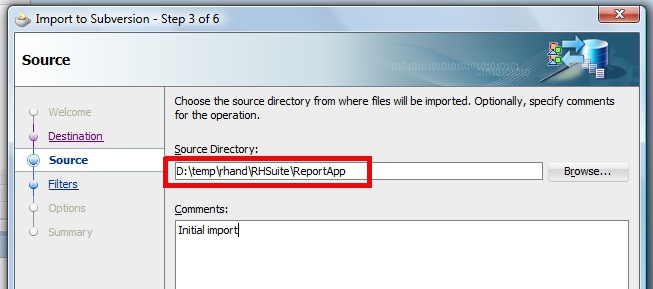
Then I had to select the source directory, notice that the path of the application I was trying to version is in D:\temp directory:


And when scrolling down to the last filter I noticed that JDeveloper will not import anything that contains the word temp!!


I had two solutions: Removing the filter or moving the application to a different path. I did the latter and it worked! Anyway, kind of silly error but seriously, pay special attention to your filters.


see ya!


References:

Oracle ADF Essentials. Oracle [online].
Available on Internet: http://www.oracle.com/technetwork/developer-tools/adf/overview/adfessentials-1719844.html
[accessed on January 06 2012].

JDeveloper and ADF 11gR2 Certification and Support Matrix. Oracle [online].
Available on Internet: http://www.oracle.com/technetwork/developer-tools/jdev/jdev11gr2-cert-405181.html
[accessed on January 08 2012].

A Visual Guide to Version Control. [online].
Available on Internet: http://betterexplained.com/articles/a-visual-guide-to-version-control
[accessed on January 06 2012].

Oracle ADF Development Essentials. Oracle [online].
Available on Internet: http://www.oracle.com/technetwork/articles/adf/adf-essentials-098792.html
[accessed on January 06 2012].

Susan Duncan Blog. [online].
Available on Internet: http://susanduncan.blogspot.com/
[accessed on January 06 2012].

Sunday, August 26, 2012

Architexa's Free Tool for Understanding Code

Hello everyone, in this post I'm going to present you a new awesome tool for understanding code through the use of Layered Diagrams, Class Diagrams and Sequence Diagrams generated right from your eclipse IDE! No need of extra software, just an eclipse plug-in. Generate your diagram as general or specific as you want, collaborate and share them through e-mail or through architexa's collaboration server and it's free for individual use!

You: Why do I need a tool to understand my own code? Why this tool if there is project/code documentation? Why do I need this tool if I have the source code and I can read it?
Me: Very often the code you work with wasn't written by you and don't tell me you remember everything  you coded 6+ months ago... Nowadays productivity is key to any company, to any developer so you can't afford spending most of your time reading and trying to understand code and because real world isn't perfect, documentation may not be synced...
You may, also, find this tool useful for rearchitecting your applications as it lets you see the big picture, collaborate and share project documentation.


Layered Diagram
Taken from
http://www.architexa.com/
See relationships between packages in a project using the Layered Diagram. This is actually a nice feature as it lets you check the relantionships not only at package level, but also at class level. You may find this useful when trying to reduce dependency between layers...low coupling? You got it!  You can then share the diagram or upload it to architexa's collaboration server.
You just need eclipse IDE and the architexa's plug-in in order to generate this diagram, right from your IDE and in a matter of seconds.


Class Diagram
Taken from
http://www.architexa.com/
Easily visualize relationships between classes and their methods using the Class Diagram. Great feature when you want to see if that pattern you want to implement fits your design or when you need to present part or the entire application to your co-workers or when you need to check on the coupling between your classes. You may generate the diagram to contain a part or the entire set of classes.  You can then share the diagram or upload it to architexa's collaboration server.
Again, you just need eclipse IDE and the architexa's plug-in in order to generate this diagram, right from your IDE and in a matter of seconds.


Sequence Diagram
Taken from
http://www.architexa.com/
Gain an understanding of code behavior and logic through the intuitive use of the Sequence Diagram. So you need to explain to your team what a method is doing? This feature got your back! Right click on a method to generate its sequence diagram. You can generate a general diagram or a fine-grained one, as you wish, include as many other classes and methods as you want. You can then share the diagram or upload it to architexa's collaboration server.
Again, you just need eclipse IDE and the architexa's plug-in in order to generate this diagram, right from your IDE and in a matter of seconds.


In order to start using Architexa's Free Tool for Understaing Code you should follow three simple steps:
  1. Register: Really easy, just your name, password, email and one or two more questions. Your username and password will be requested to activate the eclipse plug-in.
  2. Download: Start your eclipse IDE, review the instructions to download depending on your eclipse version and let the IDE install the plug-in for you.
  3. Take a Tour: Videos and documentation to get you an idea of which features will benifit you the most.
Get your plug-in from architexa's web site: http://www.architexa.com/

I already installed the plug-in on my Eclipse Helios IDE and I can tell it was a smooth process, just followed the documentation online and installed in less than 10 minutes. I then created a "Hello Architexa" application and tried some of the diagrams they offer. What I liked:
  • Easy right click on package, class or method  to access menu in order to generate diagrams.
  • General to fine-grained diagrams as you wish. Also, you can reorganize the components of the diagram.
  • Ctrl+Z behavior on diagrams.
  • Share diagrams through e-mail (as attached images) in simple steps. And the email was not detected as SPAM by gmail.
  • New menu on the Eclipse menu bar for diagrams and collaboration options and to access online documentation about the tool directly from the IDE, no need to open the Internet browser.
  • Free for individual use.

Hope you find this tool as useful as I do, but if you don't, please share your comments...

See ya!