Showing posts with label workarounds. Show all posts

Tuesday, February 11, 2014

ADF Entity Track Change History Attributes and MySQL Database

Hello all.
Oracle ADF can be used with other databases vendors rather than Oracle, however some out-of-the-box functionalities may not work properly and you'll find yourself looking for workarounds to make them work. Today, we are going to see how we can use the Track Change History properties (CreatedBy, CreatedOn, ModifiedBy, ModifiedOn) of a Business Components Entity when using MySQL.

What you need
JDeveloper 12c
MySQL 5.6.4 or higher

Before we start, you need to know the following:
  • In MySQL 5.5 and higher, InnoDB is the default storage engine. The benefits of this are: ACID Transactions, Referential Integrity, and Crash Recovery.
  • Previous versions of MySQL do NOT store fractional seconds (milliseconds) into columns of any temporal data type. More info on this, here.
  • From version 5.6.4, MySQL stores fractional seconds (milliseconds) into columns of any temporal data type. More info in this, here.
  • You can define how many milliseconds to store from 0 to 6.

To start, execute the following script in MySQL database:

CREATE  TABLE `Player` (
  `idPlayer` INT NOT NULL AUTO_INCREMENT ,
  `name` VARCHAR(150) NOT NULL ,
  `age` INT NOT NULL ,
  `created_by` VARCHAR(50) NULL ,
  `created_on` DATETIME(3) NULL ,
  `modified_by` VARCHAR(50) NULL ,
  `modified_on` DATETIME(3) NULL ,
  PRIMARY KEY (`idPlayer`) )
;


You can see that we are creating a table with an autoincrement primary key. We have seen before, a workaround about having autoincrement columns in MySQL to work with ADF, but we are not using it in this post. 

Also, notice that we are defining that the DATETIME columns will have 3 milliseconds. Once you have executed the script, go to File->New->Business Components From Tables and follow the wizard to create an Entity of the table Player, a default ViewObject and an Application Module. Remember to configure the SQL Platform as SQL92 and Data Type Map as Java:


JDeveloper will map the DATETIME columns as Timestamp fields in the Entity, which is fine since we want to store milliseconds:


Configure each history attribute as one of: Created On, Created By, Modified On, Modified By and notice that when you configure an attribute as a Track Change History Attribute, JDeveloper will select default values for other properties:


Once all the Track Change History Attributes are set, you can run the Application Module in order to test the functionality. However, you may find the following error when trying to commit to the database:


Current time is not available from SQL statement "select sysdate from dual".: Unknown column 'sysdate' in 'field list'...


This is happening because the Application Module tries to get the current date from the database using Oracle's statement: "select sysdate from dual", which is not valid in MySQL. In order to change that, go to your Application Module and edit the LOCAL configuration:


A pop up opens, go to the Properties section and look for a property called: jbo.sql92.DbTimeQuery


We need to change the value of that property to something that works on MySQL. There are many DATE related functions in MySQL, here we are going to use NOW(). So, change the value of the jbo.sql92.DbTimeQuery to:

select NOW() from dual


Click OK button and save your changes.

CAUTION: At the time of this writing, JDeveloper is using mysql-connector-java-commercial-5.1.22-bin.jar as the default MySQL library. However, when I tried the above configuration using that library, it didn't work because no milliseconds information were being stored into the database. The solution is to update the MySQL driver. You can find the official MySQL connector drivers at: http://dev.mysql.com/downloads/connector/j/

If you don't update the MySQL driver, you may experience the following error when trying to modify a row (this is the so called Phantom Error):


The following picture was taken when using the default MySQL library, notice that there is no milliseconds information saved into the database:


And here is the picture after using the latest MySQL connector, notice the milliseconds information:


When you have downloaded the new version of the driver, you have to remove the default MySQL library from your project and add the new jar. Go to your project Properties:


Run the Application Module again, create or modify rows and this time it should work.

That's it, with the above configuration you are now ready to use the Track Change History functionality when using MySQL database.


see ya!


References


MySQL 5.6 Reference Manual :: 12.7. Date and Time Functions. MySQL [online].
Available on Internet: http://dev.mysql.com/doc/refman/5.6/en/date-and-time-functions.html
[accessed on February 09 2014].

MySQL 5.6 Reference Manual :: 11.3.6. Fractional Seconds in Time Values. MySQL [online].
Available on Internet: http://dev.mysql.com/doc/refman/5.6/en/fractional-seconds.html
[accessed on February 09 2013].

MySQL 5.6 Reference Manual :: 14.2.1.1. InnoDB as the Default MySQL Storage Engine. MySQL [online].
Available on Internet: https://dev.mysql.com/doc/refman/5.6/en/innodb-default-se.html
[accessed on February 09 2013].

Saturday, November 23, 2013

Using MySQL autoincrement PK column in ADF Entity PK attribute

Hello all. Continuing with the ADF + MySQL workaround series, today we are going to see what we need to do in order to use MySQL PK autoincrement columns with our ADF Entities PK attributes. If we were using Oracle database, we would use the oracle.jbo.domain.DBSequence along with a sequence and a trigger in order to do that out-of-the-box.

For simplicity, we are going to modify the Java file associated to the Entity, but as a good practice, you should have your own implementation of the oracle.jbo.server.EntityImpl class and configure JDeveloper so it uses your own implementation for every new Entity in your application. Check this post for more information about that.

This is not a step by step tutorial about how to create ADF BC from tables, we'll assume that you already have your Business Components definitions.

What you need
JDeveloper 12c
MySQL 5.5+


This is the database table that we are going to use in this post:

CREATE  TABLE `test`.`Actor` (
  `id_actor` INT NOT NULL AUTO_INCREMENT ,
  `name` VARCHAR(100) NOT NULL ,
  PRIMARY KEY (`id_actor`) );

Once you have created your entities from tables, JDeveloper will map your Entity attributes against the table columns and will set some properties based on the type of column. For example, for our PK column (id_actor), JDeveloper will set the attribute as a mandatory Integer and always updatable. We need to change that because we want our PK to be updatable while new (while creating a new instance) and not mandatory (because we are reading the autoincrement value after posting to the database):


You may have several tables in your database and hence several Entities in your ADF application but not all tables may have autoincrement PK columns, so we need a way to mark or identify when the Entity's PK attribute is coming from an autoincrement column in the database. We are going to do that using Property Set, which allows us to define a collection of key/values properties and then we can associate those properties to an attribute and access them during runtime:
  1. In JDeveloper select: File-->New-->From Gallery...

  2. In the ADF Business Components select Property Set


  3. Set the name and package of the new property set:


  4. Once created, we can define the set of key/value properties and if the properties are going to be shown to the users, we can even define them in translatable mode. This is not our case, so we are going to define a non-translatable property:


  5. Set the property name as AI (for AutoIncrement) and its value as true (because attributes who use this Property Set are coming from an autoincrement column):


  6. Now that we have our Property Set ready, we can use it in our Entity PK attribute:


In order to retrieve the autoincrement value for our PK attribute, we need to override the default implementation of our Entity class (remember we do this for simplicity, but you can do better as described at the beginning of this post). We can do that by implementing a Java class for our Entity and then by overriding the EntityImpl.doDML(int, TransactionEvent) method, which is where changes are posted to database:
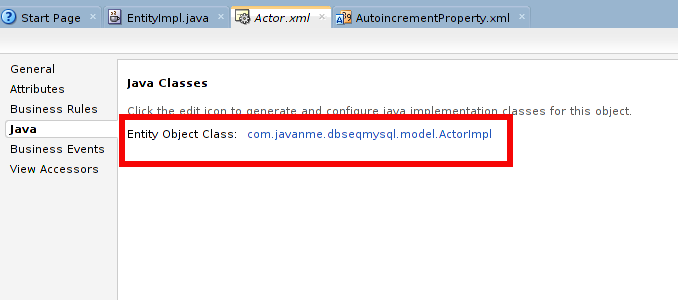
  1. Go to the Java section of the Entity and click on the pencil icon:


  2. In the pop up window, select Generate Entity Object Class:... and click OK:


  3. The Java section of the Entity class now shows the Java file, click on the link to the Java File name:


  4. JDeveloper will open a new window with the Java code. Copy and paste the following methods:

    ...
        @Override
        protected void doDML(int i, TransactionEvent transactionEvent) {
            //got to call first to super, so the record is posted 
            //and we can then ask for the last insert id
            super.doDML(i, transactionEvent);
            
            //after the record is inserted, we can ask for the last insert id
            if (i == DML_INSERT) {
                populateAutoincrementAtt();
            }
        }
        
        /*
        * Determines if the Entity PK is marked as an autoincrement col
        * and executes a MySQL function to retrieve the last insert id
        */
        private void populateAutoincrementAtt() {
            EntityDefImpl entdef = this.getEntityDef();
            AttributeDef pk = null;
            //look for primary key with Autoincrement property set
            for (AttributeDef att : entdef.getAttributeDefs()) {
                if (att.isPrimaryKey() && (att.getProperty("AI") != null 
                    && new Boolean(att.getProperty("AI").toString()))) {
                    pk = att;
                    break;
                }
            }
            if (pk != null) {
                try (PreparedStatement stmt = 
                     this.getDBTransaction()
                         .createPreparedStatement("SELECT last_insert_id()", 1)) {
                    stmt.execute();
                    try (ResultSet rs = stmt.getResultSet()) {
                        if (rs.next()) {
                            setAttribute(pk.getName(), rs.getInt(1));
                        }
                    }
                } catch (SQLException e) {
                    e.printStackTrace();
                }
            }
        }
    ...
    

    The above code is posting changes to database and then asks whether we were inserting values. If that's the case, we need to retrieve the autoincrement value and set it in our PK attribute. Refer to the MySQL function LAST_INSERT_ID() for more information about retrieving autoincrement values.

OK, let's try out our solution. First, run your application module:


Once the Oracle ADF Model Tester tool appears, select (double click) the ActorView1 View Object, on the left panel, and click on the green plus sign icon, on the right panel,  in order to add a new Actor:


Enter a name for the Actor and press the "Save changes to the database" button (little database with the checklist icon on the toolbar):


You will notice that the autoincrement value is now set to the idActor attribute!

No need to be worried about concurrent inserts, MySQL documentation states that it is OK (check this documentation):

Using LAST_INSERT_ID() and AUTO_INCREMENT columns simultaneously from multiple clients is perfectly valid. Each client will receive the last inserted ID for the last statement that client executed.

Download the ADF project used in this post.


See ya!


References:

Vesterli E., Sten (2013). Developing Web Applications with Oracle ADF Essentials. United Kingdom: Packt Publishing Ltd.


MySQL 5.5 Reference Manual :: 12.14 Information Functions. MySQL [online].
Available on Internet: http://dev.mysql.com/doc/refman/5.5/en/information-functions.html#function_last-insert-id
[accessed on November 14 2013].


MySQL 5.5 Reference Manual :: 22.8.15.3 How to Get the Unique ID for the Last Inserted Row. MySQL [online].
Available on Internet: http://dev.mysql.com/doc/refman/5.5/en/getting-unique-id.html
[accessed on November 17 2013].

Monday, July 15, 2013

JDeveloper 12c is not starting after successful installation

Hey All!

Last week, JDeveloper 12c was released and since I've been working with ADF during this year, I wanted to try it out right away. However, after successful installation, it didn't started... I work on Ubuntu 13.01 and have successfully installed JDeveloper 11gR1 and 11gR2 before and it was pretty smooth so I thought it would be the same with the new release.

Anyway, I started to check the error log and found that something was wrong with the "Open File Limit" property of my Ubuntu. The funny thing is that it is well documented on the Installation guide of JDeveloper 12c... 


I made the suggested change (I had to reboot) and then, tried to run JDeveloper again, this time I got a different error message saying that it couldn't write core dumps or something... It also suggested me to execute this command before running JDeveloper again:

ulimit -c unlimited

And so I did, but no luck. When I tried to run JDeveloper again, I got this error:

#
# A fatal error has been detected by the Java Runtime Environment:
#
#  SIGSEGV (0xb) at pc=0x6537f1e0, pid=14655, tid=1756736320
#
# JRE version: 7.0_15-b33
# Java VM: Java HotSpot(TM) Server VM (23.7-b01 mixed mode linux-x86 )
# Problematic frame:
# C  0x6537f1e0
#
# Core dump written. Default location: /home/aalopez/development/Oracle/Middleware_12.1.2/Oracle_Home/jdeveloper/jdev/bin/core or core.14655
#
# An error report file with more information is saved as:
# /home/aalopez/development/Oracle/Middleware_12.1.2/Oracle_Home/jdeveloper/jdev/bin/hs_err_pid14655.log
[thread 1764014912 also had an error]
#
# If you would like to submit a bug report, please visit:
#   http://bugreport.sun.com/bugreport/crash.jsp
#
/home/aalopez/development/Oracle/Middleware_12.1.2/Oracle_Home/jdeveloper/jdev/bin/../../ide/bin/launcher.sh: line 603: 14655 Aborted                 (core dumped) ${JAVA} "${APP_VM_OPTS[@]}" ${APP_ENV_VARS} -classpath ${APP_CLASSPATH} ${APP_MAIN_CLASS} "${APP_APP_OPTS[@]}"


plop! I had no idea what to do... However, as curious as I am, I tried to run JDeveloper using root user (you never know, right?). So I entered the following command on my console, inside the JDeveloper bin directory:

sudo ./jdev

The JDeveloper bin directory in my case is at:

/home/aalopez/development/Oracle/Middleware_12.1.2/Oracle_Home/jdeveloper/jdev/bin/

Once run with root user, JDeveloper started working!! yeii!! The only pitfall is that every new project/file that you create with JDeveloper, will be owned by root user...


What I like about this new release:

  • Adoption of Java EE 6.
  • Adoption of JDK 7.
  • The new ADF Faces components.
  • The new logo.
  • New version of ADF Essentials.

I highly recommend you to try this new release.

see ya!

Thursday, March 7, 2013

JDeveloper 11gR2 - Integrated Weblogic Server Password Reset

Hello everyone. After months of working with ADF Essentials, I needed to log in to the Console application of the integrated Weblogic Server that comes with JDeveloper 11.1.2.3 (Weblogic Server 10.3.5) and then I realized that I have forgotten the password of the weblogic user... So I started looking and found two solutions:
  1. Solution 1: Remove the default domain folder created by the Integrated Weblogic Server.
  2. Solution 2: Generate a new password for the weblogic user. 
What's the difference between solution 1 and 2?
In solution 1, you will lose any configuration you have made to your integrated weblogic server, this includes: data sources, security configuration, etc.
In solution 2, you will lose only security configurations you have made. For example, if you have created more users, or groups, or configured access to an external LDAP service, but will keep everything else. I have to say that this solution is more difficult than solution 1.

If you have not made any configurations to your integrated Weblogic server, I suggest you to go with solution 1. 

Before we continue with the solutions, we first need to find the IDE system directory. In order to do that, open JDeveloper, go to the Help menu and select the About option. A popup shows up, select the Properties tab and scroll down until you find any of  these: ide.pref.dir or ide.system.dir or ide.user.dir 

In a Linux environment, you may find something like this:


In a windows environment, you may find something like this:


Actually, the dir we are looking for is the ide.system.dir so lets write it down so we can use it later:

Linux (my case, yours may be different)
SYS_DIR=/home/aalopez/.jdeveloper/system.11.1.2.3.39.62.76.1

Windows (my case, yours may be different)
SYS_DIR=C:\Users\CVDESA\AppData\Roaming\JDeveloper\system11.1.2.3.39.62.76.1

Make sure Weblogic server is shut down before you continue.


Solution 1: Removing the DefaultDomain folder
The first and easiest solution is to Remove the following folder (DefaultDomain):
SYS_DIR/DefaultDomain

The folder will get re-created for you the next time you start the Weblogic server. The problem is that you will lose any configuration you may have done including: users, passwords, datasources, etc. All of it.
Once you remove the folder, open JDeveloper go to the Run menu, and select the Start Server Instance (IntegratedWeblogicServer) option. A popup shows up asking you to set the weblogic user credentials. That's it!

Solution 2: Reset the weblogic user password
Please follow the next steps in order reset the password in a Linux system (Ubuntu 12.1), steps for Windows system are also presented:

Linux
  1. Go to this path: SYS_DIR/DefaultDomain/bin, where SYS_DIR is the path we defined above.
  2. Execute the setDomainEnvironment.sh
  3. Go to this path: SYS_DIR/DefaultDomain/security
  4. Rename the DefaultAuthenticatorInit.ldift file to something like oldDefaultAuthenticatorInit.ldift
  5. Export the weblogic.jar file to the classpath, so we can create a new password for the weblogic user (in my case, the installation directory of JDeveloper is /home/aalopez/Oracle):
  6. export CLASSPATH=$CLASSPATH:/home/aalopez/Oracle/Middleware/wlserver_10.3/server/lib/weblogic.jar
  7. Execute the following command in order to create the new password. Notice that the command has a dot at the end, this is necessary so the new password is created in the current directory. Change NEW_PASSSWORD for the new password of the weblogic user:
  8. java weblogic.security.utils.AdminAccount weblogic NEW_PASSWORD .
  9. Go to this path: SYS_DIR/DefaultDomain/servers/DefaultServer
  10. Rename the data directory to something like data_old
  11. Go to this path: SYS_DIR/DefaultDomain/servers/DefaultServer/security
  12. Rename the boot.properties file to something like oldboot.properties
  13. Create a new boot.properties file in the same directory. This is necessary if you want autologin when launching the Weblogic server from within JDeveloper. The content of the file should be something like the following (change NEW_PASSWORD for the password you defined in previous steps):
  14. username=weblogic
    password=NEW_PASSWORD
  15. It's time to test our changes. Go to this path: SYS_DIR/DefaultDomain/bin
  16. Execute the startWeblogic.sh file and verify that Weblogic server starts without exceptions.
  17. Open a new browser and enter the following URL (the port may be different for you):
  18. http://localhost:7101/console
  19. The Weblogic server console application should display and you can login with your new credentials.
  20. When you are ready to stop the Weblogic server, go to this path: SYS_DIR/DefaultDomain/bin
  21. Execute the stopWeblogic.sh file in order to stop the server.

There's one extra step that we'll cover after we check the Windows steps:


Windows

  1. Go to this path: SYS_DIR\DefaultDomain\bin, where SYS_DIR is the path we defined above.
  2. Execute the setDomainEnvironment.cmd
  3. Go to this path: SYS_DIR\DefaultDomain\security
  4. Rename the DefaultAuthenticatorInit.ldift file to something like oldDefaultAuthenticatorInit.ldift
  5. Execute the following command in order to create the new password. Notice that the command has a dot at the end, this is necessary so the new password is created in the current directory. Change NEW_PASSSWORD for the new password of the weblogic user:
  6. java weblogic.security.utils.AdminAccount weblogic NEW_PASSWORD .
  7. Go to this path: SYS_DIR\DefaultDomain\servers\DefaultServer
  8. Rename the data directory to something like data_old
  9. Go to this path: SYS_DIR\DefaultDomain\servers\DefaultServer\security
  10. Rename the boot.properties file to something like oldboot.properties
  11. Create a new boot.properties file in the same directory. This is necessary if you want autologin when launching the Weblogic server from within JDeveloper. The content of the file should be something like the following (change NEW_PASSWORD for the password you defined in previous steps):
  12. username=weblogic
    password=NEW_PASSWORD
  13. It's time to test our changes. Go to this path: SYS_DIR\DefaultDomain\bin
  14. Execute the startWeblogic.cmd file and verify that Weblogic server starts without exceptions.
  15. Open a new browser and enter the following URL (the port may be different for you):
  16. http://localhost:7101/console
  17. The Weblogic server console application should display and you can login with your new credentials.
  18. When you are ready to stop the Weblogic server, go to this path: SYS_DIR\DefaultDomain\bin
  19. Execute the stopWeblogic.cmd file in order to stop the server.


Once you have changed and tested the new password for the weblogic user, is time to update the information in JDeveloper. Open JDeveloper and go to the Resource Palette, if you can't find it, go to the View menu and select the Resource Palette option:


There, select the Application Server category and the IntegratedWebLogicServer. Right click and select the Properties option. A new popup shows up, select the Authentication tab:


There you can set the new weblogic user password that you just defined steps above. Apply changes and that's it!


see ya,


References:

Reset lost weblogic admin password | Beyond Oracle. João Oliveira [online].
Available on Internet: http://www.beyondoracle.com/2010/08/30/reset-lost-weblogic-admin-password/
[accessed on March 02 2013].

Enabling Auto Login by Using the Boot Identity File. Oracle [online].
Available on Internet: http://www.oracle.com/webfolder/technetwork/tutorials/obe/fmw/wls/10g/r3/installconfig/enable...
[accessed on March 02 2013].

Changing DefaultServer's Password running in JDeveloper. Brenda [online].
Available on Internet: http://newsoalife.blogspot.com/2011/07/changing-defaultservers-password.html
[accessed on March 04 2013].

OTN Discussion Forums. Oracle [online].
Available on Internet: https://forums.oracle.com/forums/thread.jspa?threadID=2285290
[accessed on March 07 2013].

Wednesday, January 9, 2013

JDeveloper 11gR2 and Subversion

During the last month I've been architecting an ADF Essentials project for a local company which has 4 developers to work on the project. We are planning to use several collaboration and development lifecycle management tools such as: Subversion, Bugzilla, Oracle Team Productivity Center, Wiki, etc.

I wanted to share with you something that was happening to me when using Subversion and JDeveloper, something simple, but took me several hours to figure it out.

First of all, if you don't know what subversion is, I found this very practical guide that may be helpful:


The version of JDeveloper we are using is JDeveloper 11gR2 (11.1.2.3.0) which is certified to work with Subversion 1.6.x according to the official documentation. At first, we were having issues because we installed a different version of subversion, but once we installed the correct version it seemed to work pretty well on my co-workers laptops. However, it wasn't working for me. I didn't know why, I followed several tutorials such like this one:


But nothing worked for me. I tried several times to version a simple application I had and JDeveloper showed me that it was imported correctly:


However, when cheking on the repository, there was nothing... At the end, I realized that when versioning the application, JDeveloper applies some default filters, so your repository doesn't end up with files that can be regenerated such as .class files. So I paid more attention to this filters and found the solution to my problem. Following are the steps I took when versioning:


Then, I selected the repository and the folder where I wanted to keep my files:


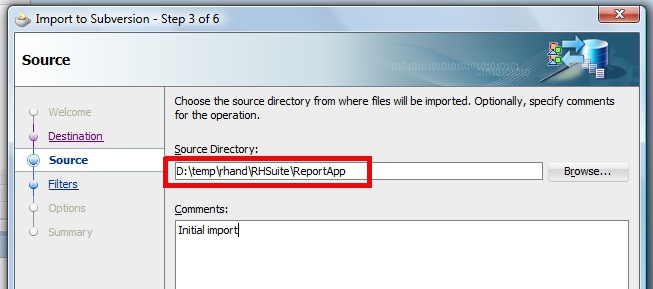
Then I had to select the source directory, notice that the path of the application I was trying to version is in D:\temp directory:


And when scrolling down to the last filter I noticed that JDeveloper will not import anything that contains the word temp!!


I had two solutions: Removing the filter or moving the application to a different path. I did the latter and it worked! Anyway, kind of silly error but seriously, pay special attention to your filters.


see ya!


References:

Oracle ADF Essentials. Oracle [online].
Available on Internet: http://www.oracle.com/technetwork/developer-tools/adf/overview/adfessentials-1719844.html
[accessed on January 06 2012].

JDeveloper and ADF 11gR2 Certification and Support Matrix. Oracle [online].
Available on Internet: http://www.oracle.com/technetwork/developer-tools/jdev/jdev11gr2-cert-405181.html
[accessed on January 08 2012].

A Visual Guide to Version Control. [online].
Available on Internet: http://betterexplained.com/articles/a-visual-guide-to-version-control
[accessed on January 06 2012].

Oracle ADF Development Essentials. Oracle [online].
Available on Internet: http://www.oracle.com/technetwork/articles/adf/adf-essentials-098792.html
[accessed on January 06 2012].

Susan Duncan Blog. [online].
Available on Internet: http://susanduncan.blogspot.com/
[accessed on January 06 2012].

Wednesday, November 28, 2012

JDeveloper 11gR2 and Java 7

Hello all. For an ADF Essentials application I'm working on I wanted to use the great set of new features introduced by Java 7, however JDeveloper 11gR2 (11.1.2.3) is not certified for JDK 7 so I had to look for help and found some tricks that let you use the new JDK.

This is what you need to do:
  1. Download and Install the new JDK. You can find the latest release using this link.
  2. Add the new JDK to JDeveloper's libraries: Tools -> Manage Libraries.
  3. Configure JDeveloper to run using the new JDK.
  4. Configure the Integrated Weblogic server to run using the new JDK.

The first step is pretty simple. Just go to that location, download the latest release of Java 7 and install it on your machine. In my case, I didn't have to create any environment variable for the JAVA_HOME or PATH, but your case may be different.

Open JDeveloper and go to the menu Tools and then open Manage Libraries:


The Manage Libraries dialog appears, select the title Java SE Definitions and then click on the button New... 


The Create Java SE dialog appears. For me, the Browse... button didn't work when trying to get in the Program Files directory, so I opened Windows Explorer and went to new JDK installation directory (for me it was: C:\Program Files\java\jdk1.7.0_09) then I copied the path from Windows Explorer and pasted it on the Java SE Executable inputText. I also added  \bin\java.exe


Notice that after you complete the path to the Java SE executable (\bin\java.exe), Jdeveloper will load the rest of the information. Hit the OK button to finish.

Now, JDeveloper comes with its own JDK and we need to change it for the new one you just installed. Close JDeveloper, open Windows Explorer and go to {ORACLE_HOME}\jdeveloper\jdev\bin where {ORACLE_HOME} is the directory you used when installing JDeveloper. There you will find a file called jdev.conf open it with a text editor and look for the entry SetJavaHome on line 31 (line numbers may differ in other versions of Jdeveloper), comment it and create a new SetJavaHome entry below that one, but this time use the new JDK installation folder:


What we just did tells JDeveloper to start with the new JDK. Now we need to configure the Integrated Weblogic server so it starts with the new JDK as well.

We need to find the value of the -Dide.pref.dir.base entry as described here:
http://www.java-n-me.com/2012/11/jdeveloper-11gr2-wont-start.html

In my case the value of the entry is: C:\Users\{MY_USER}\AppData\Roaming, where {MY_USER} is my user name, you may need to enable the "show hidden files" property of the Windows Explorer in order to be able to locate that directory. There,  look for the JDeveloper\system11.x.x.x.. directory where the x's are numbers. Open DefaultDomain\bin directory and edit setDomainEnv.cmd using a text editor:


Comment the line 45 and below that line set the SUN_JAVA_HOME property to point to the new JDK. Repeat the same procedure for the JAVA_HOME  property found at line 55 (line numbers may differ in other versions of Jdeveloper):


That's it, now JDeveloper and its Integrated Weblogic Server will use the new JDK. Open JDeveloper and go to Help->About->Version and you will notice that it is using the new JDK:


As I didn't want to keep using the old JDK I removed it from the Tools->Manage Libraries menu option so my new JDK become the Default JDK and all my new projects will be using Java 7:


I hope this workaround works for you as it did for me.

see ya!


References:

Using WebLogic Server with JDK 7. Oracle [online].
Available on Internet: http://docs.oracle.com/cd/E23943_01/doc.1111/e14142/jdk7.htm
[accessed on Novemeber 25th 2012].

Nick Aiva's blog! [online].
Available on Internet: http://nickaiva.blogspot.com/2011/04/jdeveloper-11g-setting-up-newest-java.html
[accessed on Novemeber 25th 2012].

Sunday, November 11, 2012

JDeveloper 11gR2 won't start

Hello all, I just wanted to share with you a workaround to "restart" your JDeveloper 11gR2 (11.1.2.3) if it is not starting. I struggle with this for several hours, until I found some documentation that helped me out.

My case
  • JDeveloepr 11gR2 (11.1.2.3)
  • OS = Win Vista Sp2 
  • RAM= 4GB
  • Installation by default (C:\Oracle\Middleware).

I'm developing an ADF Essentials application and after updating some extensions my JDeveloper installation stopped working. I did several reinstallations and registry cleaning but nothing worked, JDeveloper just didn't start and it freezed when "Restoring Editors":


Fortunately, I found this blog: http://adfhowto.blogspot.in/2011/03/troubleshooting-jdeveloper-will-not.html which gives a tip about the JDeveloper preferences directory. What it says is that you can delete or modify the name of the JDeveloper preferences directory, and JDeveloper will create another one with default preferences. Something you should be aware of is that this procedure deletes all your preferences: SVN, extension preferences, general preferences...etc. So it's up to you.

The Solution
I decided that this procedure fitted my needs and started to search for that directory. There is an easy way to find the preferences directory:
  • Open a DOS terminal (cmd).
  • Go to your JDeveloper installation directory (in my case C:\Oracle\Middleware\jdeveloper\).
  • We need to execute the file jdev.exe which is in {JDEV_INSTALLATION_DIR}\jdev\bin
  • Type this command: jdev.exe -verbose
The previous procedure will try to start JDeveloper and will show all the steps required to do so. Look for the -Dide.pref.dir.base entry:


The final step is: go to that location and rename or delete (rename is better) the directory system11.x.x.x... for something else. Restart JDeveloper and it will start and create a new directory with default preferences.

I hope this post helps so you don't have to spend several hours trying to put JDeveloper to work.

see ya!